Zoom Busy Light That Shows When You're in a Meeting
When you join a Zoom meeting, this USB desk light turns red — so no one walks up or talks over you mid-call. When your meeting ends, it goes back to green. Automatically, with nothing to press. Zoom sync is included in the free app.
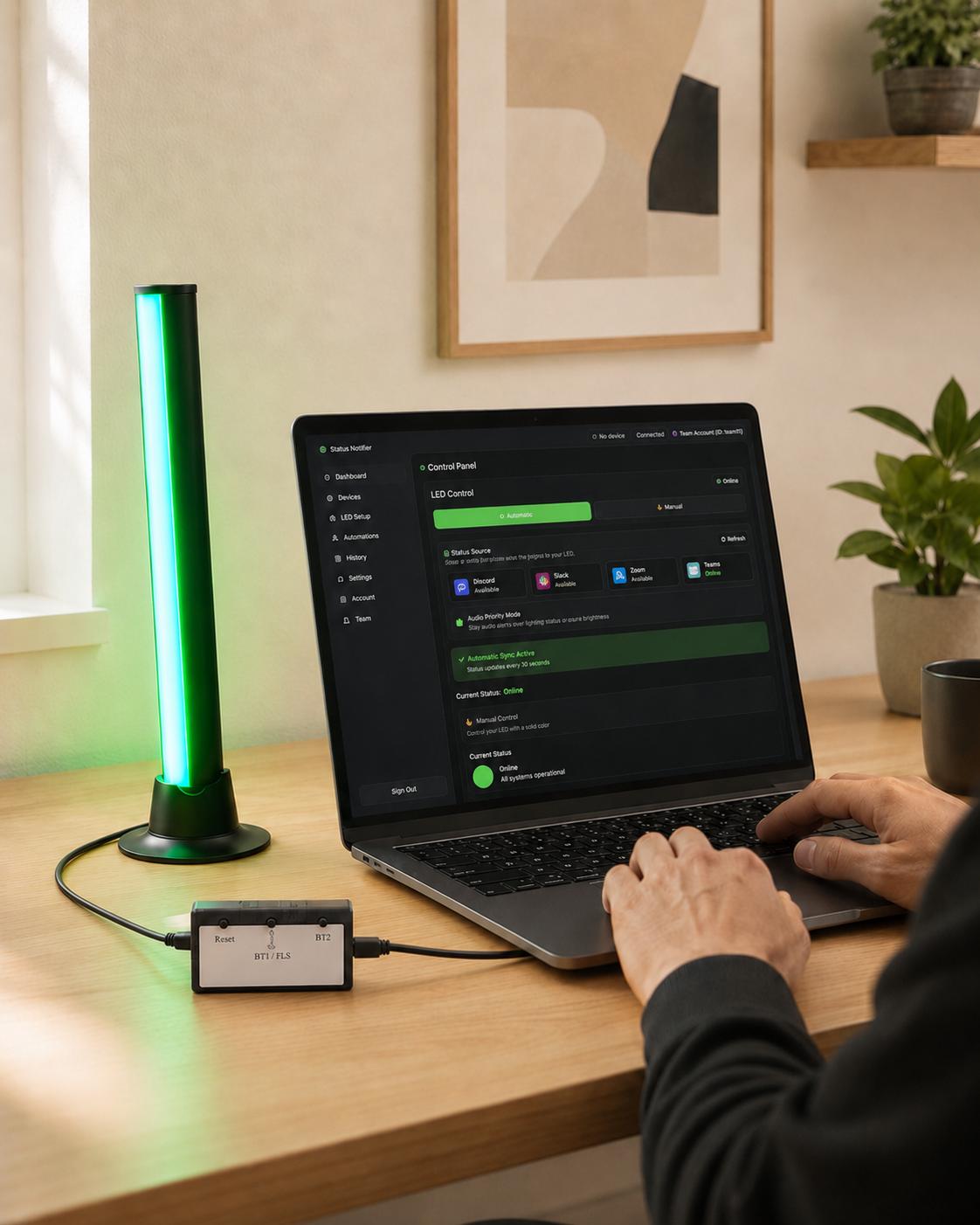
Working from home or in an open office? Status Notifier gives everyone around you a clear, glanceable signal when you're on a Zoom call — no subscription needed.
USB · Windows & Mac · Free app · Ships from California
Green when you're free, red when you're on Zoom
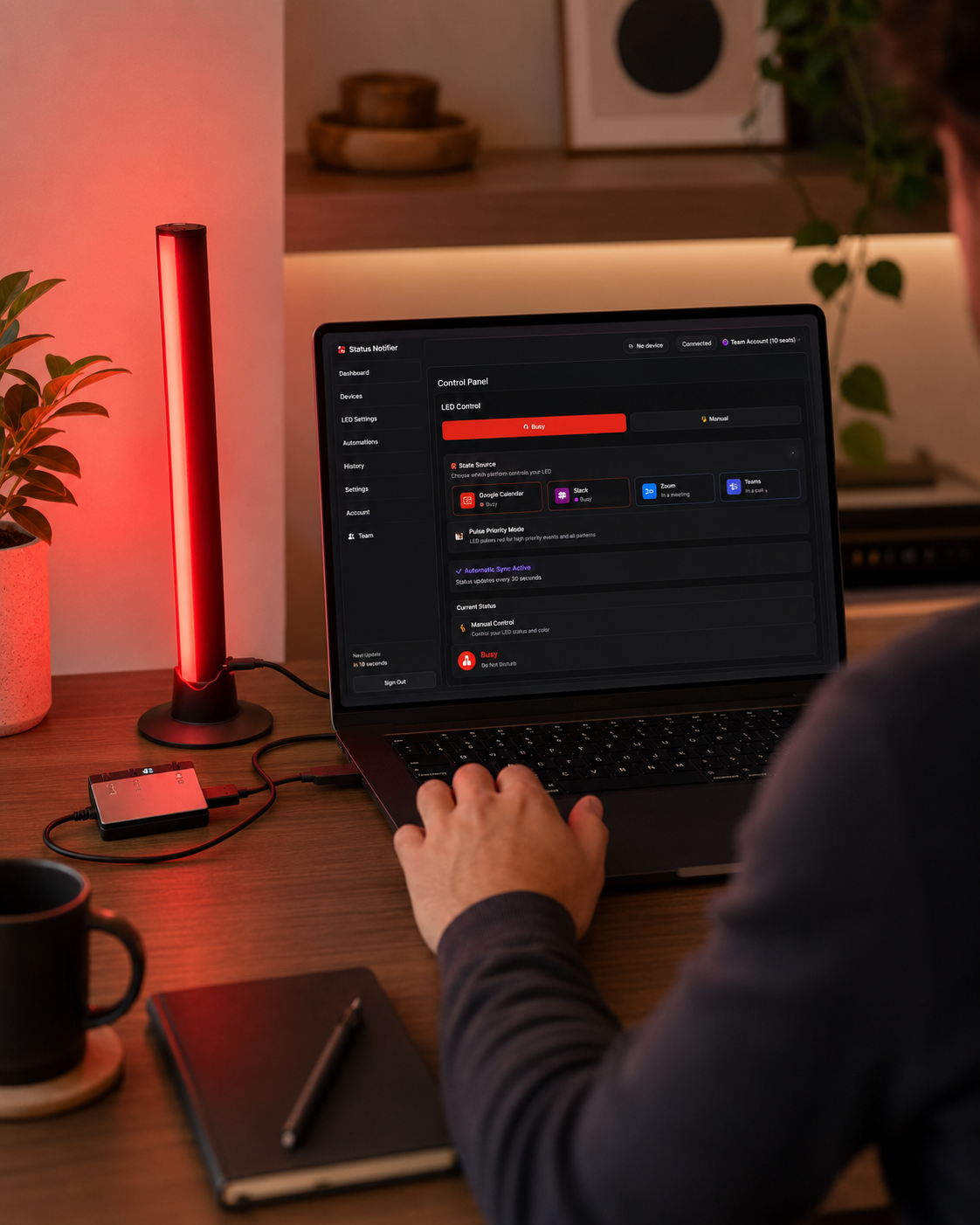
How the automatic sync works
A lightweight app runs quietly in the background and connects to your Zoom account using Zoom's official, secure sign-in. When you start or join a meeting, Zoom marks you as in a meeting — and the app sends the matching color to the light over USB. Leave the call, and it returns to green. The free app checks about every 30 seconds; paid plans check as often as every five seconds, with longer intervals when your status is steady or you're idle. No buttons, nothing to remember to open.
Status Notifier only reads the presence signal it needs to pick a color. It never joins your meetings, records audio, or reads your chats.
What each Zoom status looks like
Prefer your own palette? Every color is customizable in the app's LED settings.
Works on Windows and Mac
Status Notifier works with Zoom on Windows 10/11 and macOS 13 (Ventura) or later, on both Apple Silicon and Intel Macs. Find it on the Zoom Marketplace, or get the desktop app from the Microsoft Store, the Mac App Store, or as a direct download. The light connects over USB — no hub, batteries, or Wi-Fi setup.
Set it up in three steps
- Connect the light. Plug the controller's built-in lead into the light bar, then connect the controller to a USB-A port on your PC or Mac with the supplied cable.
- Install the app and connect Zoom. Download the free app, choose Zoom under Dashboard → Status Source, and sign in with your Zoom account.
- You're done. Your light now turns red whenever you're in a Zoom meeting. Set it and forget it.
Zoom busy light — FAQ
Does the light turn red automatically when I'm in a Zoom meeting?
Yes — and it's free. The free app turns the light red when Zoom shows you in a meeting or on a call, and back to green when you leave, checking about every 30 seconds. Paid plans check as often as every five seconds, with longer intervals when your status is steady or you're idle.
Does it work with a free Zoom account?
Yes. Free and paid Zoom accounts both work — you just sign in with your Zoom account.
Do I install it from the Zoom Marketplace?
You can. Status Notifier is listed on the Zoom Marketplace, or you can connect Zoom from inside the desktop app. Either way you sign in with Zoom's official secure login. On most accounts there's nothing else to do; if your company's Zoom admin restricts Marketplace apps, they may need to approve it first.
Does it work with Zoom on both Windows and Mac?
Yes — Windows 10/11 and macOS 13 or later, on Apple Silicon and Intel Macs.
Does it also work with Teams, Slack and Discord?
Yes. The free app syncs one platform — Zoom, Teams or Slack. Discord, and connecting several platforms to one account, come with the paid plans; on Professional and Team plans you switch which one the light follows in a single click. See how it compares.
Is my Zoom data private?
Yes. The app only reads the presence signal it needs to pick a color. It never joins your meetings, records audio, or reads your chats. Sign-in uses Zoom's official secure login.