The Busy Light for Discord
A USB desk light that follows your Discord status. Set yourself to Do Not Disturb before you jump on a call and the light on your desk turns red — so family, roommates, and housemates know not to walk in. It's the only commercial busy light that tracks Discord.
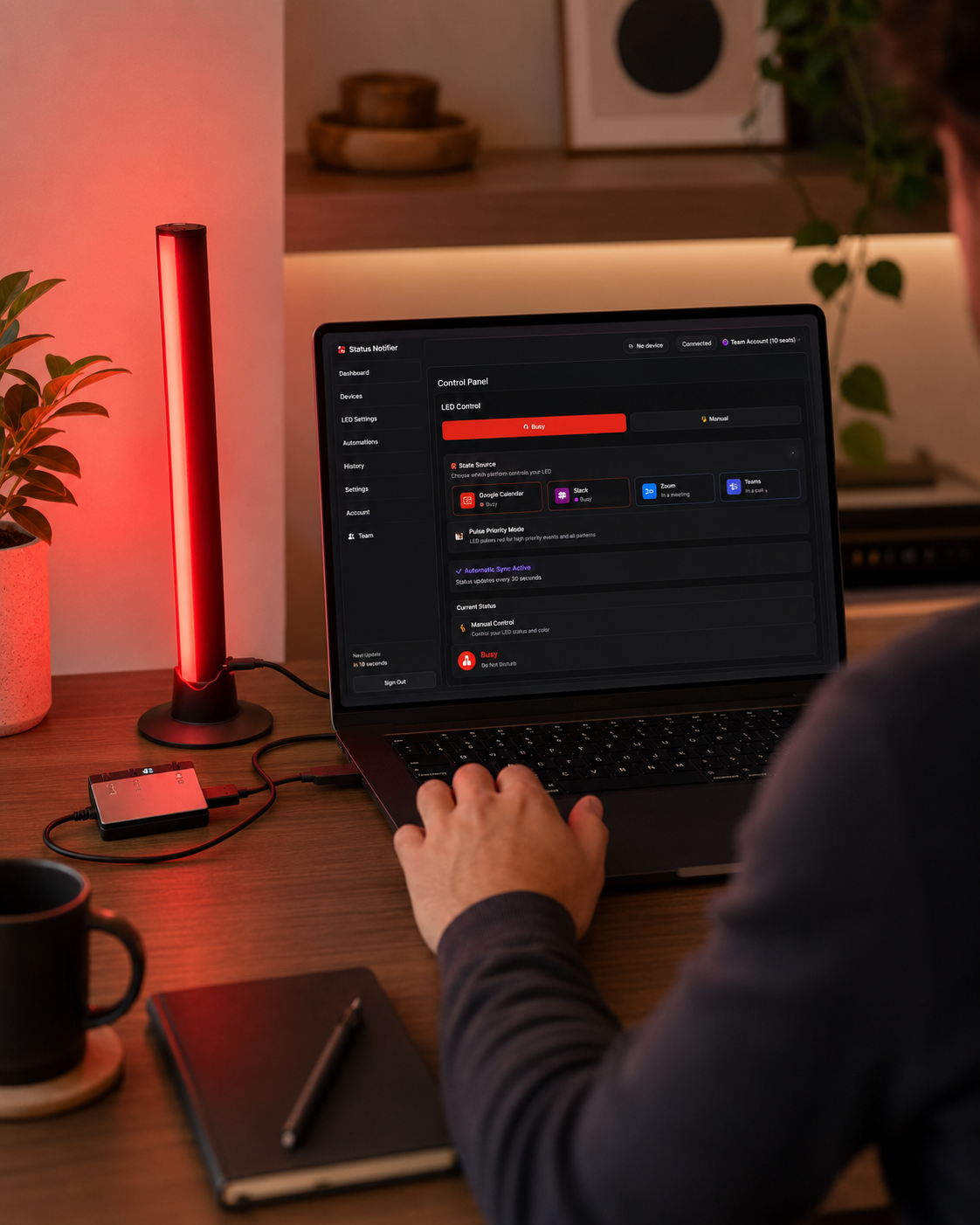
Stop getting interrupted mid-game or mid-call. Status Notifier reads your Discord status and mirrors it as a bright, glanceable color on your desk.
USB · Windows & Mac · Discord sync on paid plans from $4.99/month
Watch the light follow your Discord status
▶ The light switches from green to red as your Discord status changes — automatically.
How the automatic sync works
Discord doesn't offer a normal way for apps to read your status, so Status Notifier uses a small bot that lives in our free Presence Notifier community server. You join that server once, and the bot can see your Discord status — Online, Idle, Do Not Disturb — the same status everyone else in the server sees. The desktop app picks it up and sends the matching color to the light over USB. No buttons, nothing to remember to open.
Voice calls: the bot can also tell when you're in a voice channel — but only in servers where the bot is present. That includes Presence Notifier, and if you manage a server ("Manage Server" permission), you can add the bot to it from the app's Discord setup screen so calls there are detected too. Discord doesn't let any app see private DM calls. For those, set Do Not Disturb and the light turns red.
You sign in once with Discord's official, secure login. Status Notifier never reads your messages or listens to your voice chats, and for calls it stores only that you're in one — never which channel.
What each Discord status looks like
Prefer your own palette? Every color is customizable in the app's LED settings.
Works on Windows and Mac
Status Notifier works with Discord on Windows 10/11 and macOS 13 (Ventura) or later, on both Apple Silicon and Intel Macs. Get the app from the Microsoft Store, the Mac App Store, or as a direct download. The light connects over USB — no hub, batteries, or Wi-Fi setup.
Set it up in four steps
- Connect the light. Plug the controller's built-in lead into the light bar, then connect the controller to a USB-A port on your PC or Mac with the supplied cable.
- Install the app and pick Discord. Download the app, start a paid plan from Account, and choose Discord under Dashboard → Status Source.
- Join Presence Notifier and sign in. The app gives you the invite to our community server — a one-time step that doesn't affect your other servers — then you sign in with Discord.
- You're done. Your light now follows your Discord status automatically.
Discord busy light — FAQ
Does the light change automatically with my Discord status?
Yes, on a paid plan. Online shows green, Idle amber and Do Not Disturb red, and the light follows along as your status changes — no buttons to press. Tip: set Do Not Disturb when you hop on a call.
Will it detect when I join a voice call?
In servers where the Status Notifier bot is present, yes — joining a voice channel turns the light red. That includes our Presence Notifier community server, and any server you manage where you add the bot from the app's Discord setup screen. Discord doesn't let any app see private DM calls or calls in servers the bot isn't in, so for those, set Do Not Disturb.
Why do I need to join the Presence Notifier server?
Discord only shares your status with bots in a server you're in. Joining our free community server once lets the bot see your status — the same status any other member could see. It doesn't affect your other servers, and you don't need admin rights anywhere.
Is Discord sync free?
Discord sync is part of the paid plans, from $4.99/month. The free app syncs Microsoft Teams, Slack or Zoom, and gives you manual control of the light.
Is this an official Discord product?
No. Status Notifier is made by GH TechLand and works with your Discord account through Discord's official secure sign-in. It is not affiliated with or endorsed by Discord.
Does it work with Discord on both Windows and Mac?
Yes — Windows 10/11 and macOS 13 or later, on Apple Silicon and Intel Macs. Get the app from the Microsoft Store, the Mac App Store, or as a direct download.
Does it also work with Teams, Zoom and Slack?
Yes. On Professional and Team plans you can connect Discord, Teams, Zoom and Slack to one account and switch which one the light follows in a single click. See how it compares.
Is my Discord data private?
Yes. The bot only sees what any member of the server can see. It keeps your Discord status, your custom status text if you set one, and whether you're in a call — never which channel, and never your games or other activities. Status Notifier never reads your messages or listens to voice chats, and never sells your data.