Microsoft Teams Busy Light That Changes Automatically
Show your Microsoft Teams status on your desk without lifting a finger. When your Teams presence changes — Available, Busy, In a meeting, Away — this USB light changes color automatically, so the people around you know before they interrupt.
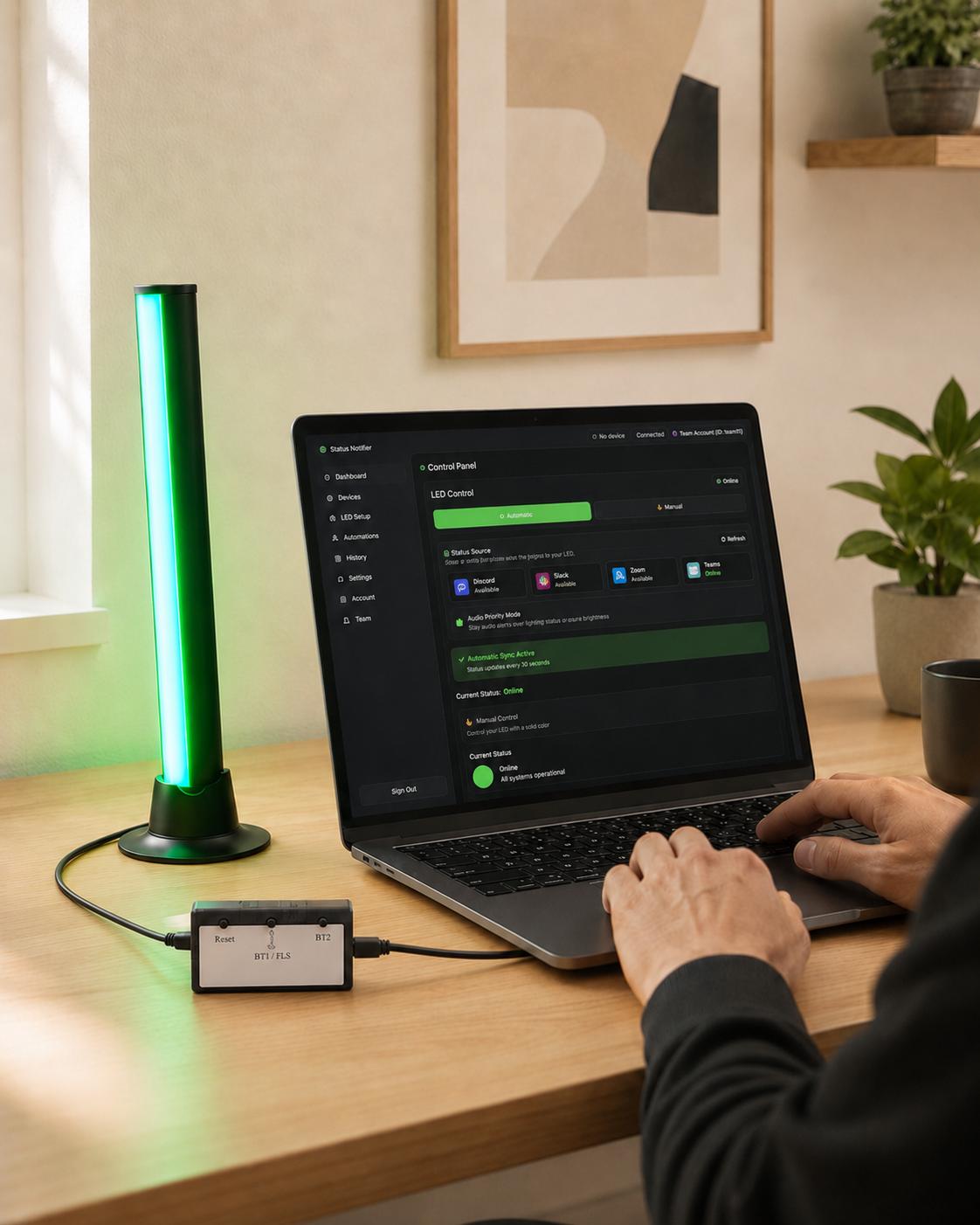
Stop the mid-meeting tap on the shoulder. Status Notifier reads your live Microsoft Teams presence and mirrors it as a bright, glanceable color on your desk.
USB · Windows & Mac · Ships from California
See your Teams status change the light
▶ Join a Teams call and watch the light switch from green to red — automatically.
How the automatic sync works
A lightweight app runs quietly in your system tray and watches your Microsoft Teams presence — the same Available / Busy / Away status your colleagues already see in Teams. The moment Teams updates your status (you join a meeting, start a call, or switch to Do Not Disturb), the app sends the matching color to the light over USB, in real time. No buttons, nothing to remember to open.
You sign in once with your Microsoft account through Teams' official, secure login — Status Notifier only reads the presence signal it needs to pick a color. It never reads your messages or joins your meetings.
What each Teams status looks like
Prefer your own palette? Every color is customizable in the app's LED settings.
Works on Windows and Mac
Status Notifier works with Microsoft Teams on both Windows 10/11 and macOS 11 (Big Sur) or later, including Apple Silicon and Intel Macs. Get the app from the Microsoft Store or the Mac App Store — it connects to the light over a single USB cable, with no hub, batteries, or Wi-Fi setup.
Set it up in three steps
- Plug the light into USB. Connect the light bar to any USB port on your Windows PC or Mac — it powers on instantly.
- Install the app and sign in to Microsoft Teams. Download the app, then sign in with your Microsoft account so it can read your Teams presence.
- You're done. Your light now follows your Teams status automatically. Set it and forget it.
Microsoft Teams busy light — FAQ
Does it change automatically with my Teams status?
Yes. With an active subscription, the light follows your live Microsoft Teams presence in real time — Available, Busy, In a meeting, or Away — with no buttons to press. The free app lets you set colors manually.
Do I need admin or IT approval to use it?
No corporate IT rollout is required. You install the app like any normal program and sign in with your existing Microsoft account.
Does it work with Teams on both Windows and Mac?
Yes — Windows 10/11 and macOS 11 or later (Apple Silicon and Intel). The app is on the Microsoft Store and the Mac App Store.
Will it show "In a meeting" and "On a call"?
Yes. Teams reports meetings and calls as Busy, so the light glows red during any Teams meeting or call, then returns to green when you're free.
Does it also work with Zoom, Slack and Discord?
Yes. Status Notifier can sync Microsoft Teams, Zoom, Slack and Discord — all at once. See the download page for details.
Is my Teams data private?
Yes. The app only reads the presence signal it needs to pick a color. It never reads your messages, records calls, or sells your data. Sign-in uses Microsoft's official secure login.